Questa's dynamic programme is your event schedule inside the app: the organiser builds sessions, rooms and speakers in the back office, and every attendee sees the programme by day, saves the sessions they want to follow, gets a reminder before they start, checks in by QR in the room and rates them afterwards. Always up to date, with no PDFs and no reprints.
Anyone who has run a conference knows the problem: the programme goes out as a PDF, a room changes at the last minute, two sessions clash and attendees never quite know what is on right now. This guide explains what the dynamic programme is, how the organiser sets it up step by step and how the attendee uses it in the app.
What is a dynamic event programme
It is Questa's event schedule feature. Instead of a static document, the programme lives on the platform: each session has a time, a room, a speaker, a description and, if you want, a points challenge. When you change something in the back office, attendees see it in the app straight away.
It is an optional add-on, enabled per event. If you don't enable it, the event works as before — the “Programme” shortcut just doesn't show in the app. The price is set per plan and shown on the activation screen before you pay; some plans include it, and each organisation's first use can be offered for free (see “How to enable it”).
Quick summary
| Aspect | How it works |
|---|---|
| Who it is for | Organisers (back office) and attendees (iOS and Android app) |
| Session types | Talk, workshop, panel, break and meal |
| Organisation | Days, rooms and speakers; drag and drop to reorder |
| Import | CSV or Excel (up to 1000 rows), with a template file |
| In the app | Programme by day, “My agenda”, “Live now”, search, filters and calendar |
| Reminders | Notification 15 minutes before saved sessions |
| Check-in | QR posted in the room, from 30 minutes before to 30 minutes after the session |
| Rating | 1 to 5 stars and a comment, once the session has ended |
| Languages | Titles and descriptions in Portuguese, English and Spanish |
| Cost | Per-event add-on; price set per plan; first use offered |
What it is for: the benefits for organisers and attendees
- Less confusion on the day: attendees always see the current programme, including room and time changes.
- Better session attendance: the reminder 15 minutes before and the “Live now” highlight bring people to the right room.
- Real data on your sessions: see how many saved each session, how many checked in and what rating they gave.
- Gamification: a session can carry a QR challenge that awards points for checking in at the room.
- Less work: import the programme from a spreadsheet instead of typing it session by session.
How to enable the dynamic programme in the back office
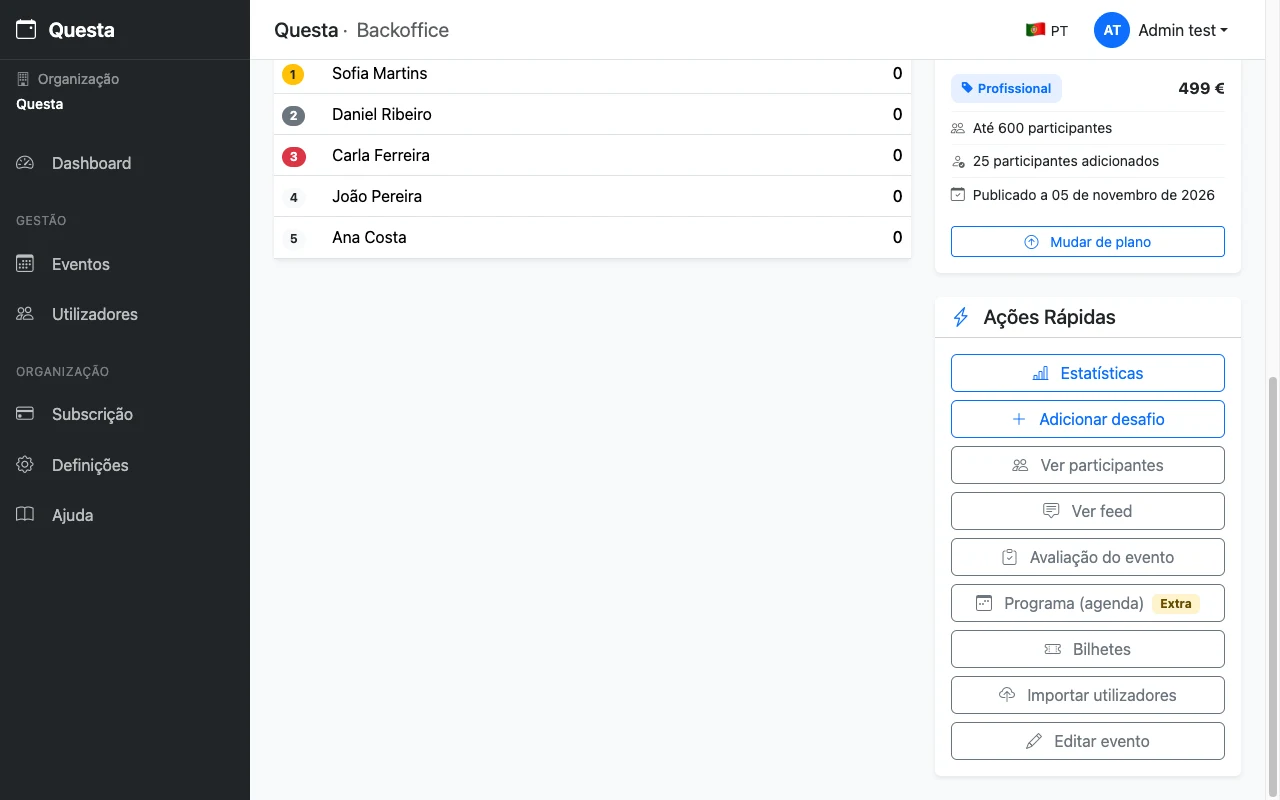
- Open the event and, under Quick actions, click “Programme (agenda)”. The event must have a plan assigned; a draft without a plan can't enable the add-on yet.
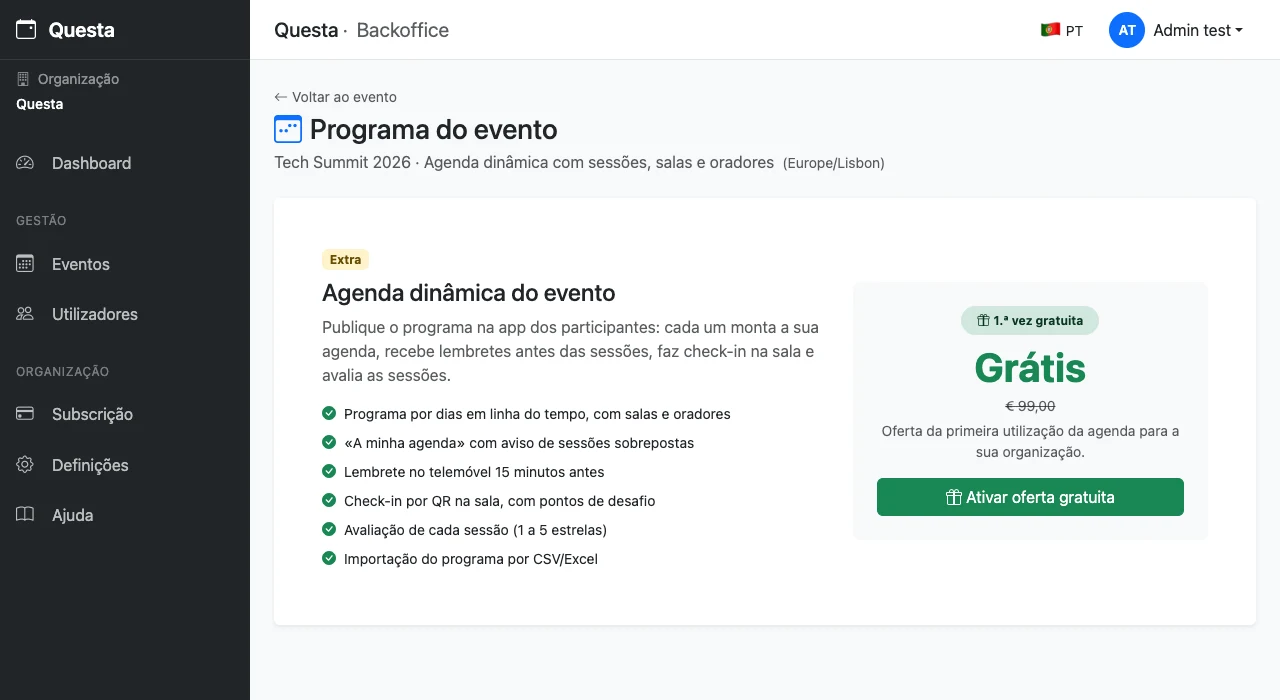
- Read the activation screen. It shows the add-on price for your plan, or “Included” if your plan already covers it.
- Enable it. If this is your organisation's first use of the dynamic programme on an eligible event, activation is offered for free; otherwise you go to secure payment and the programme is active as soon as it is confirmed.
- Start building the programme — by importing a file or creating sessions by hand.
Note: the free plan isn't eligible for the first-use offer. The Questa team can also grant the add-on to an event; in that case a notice appears at the top of the programme screen.
How to build the programme, session by session
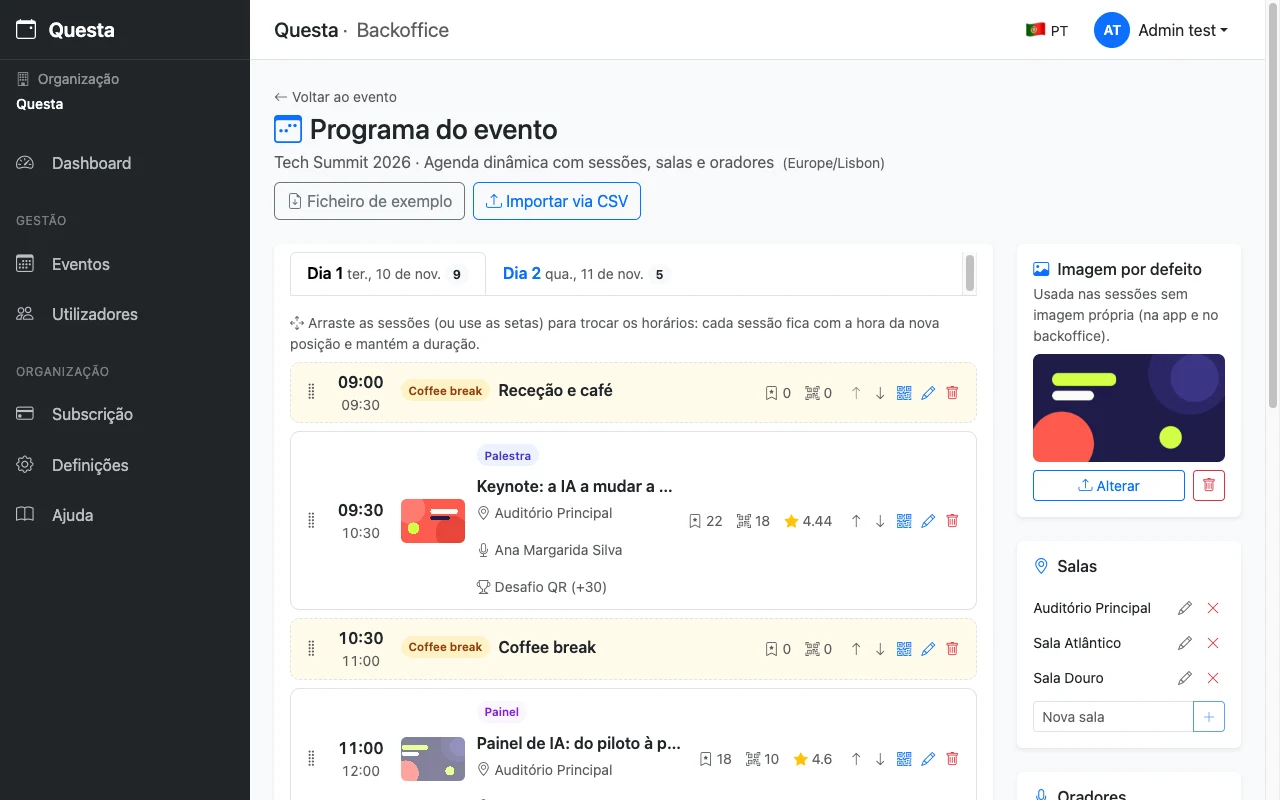
The programme page shows one tab per event day, with the number of sessions in each. Sessions are edited right in the row, with no pop-ups.
Add a session
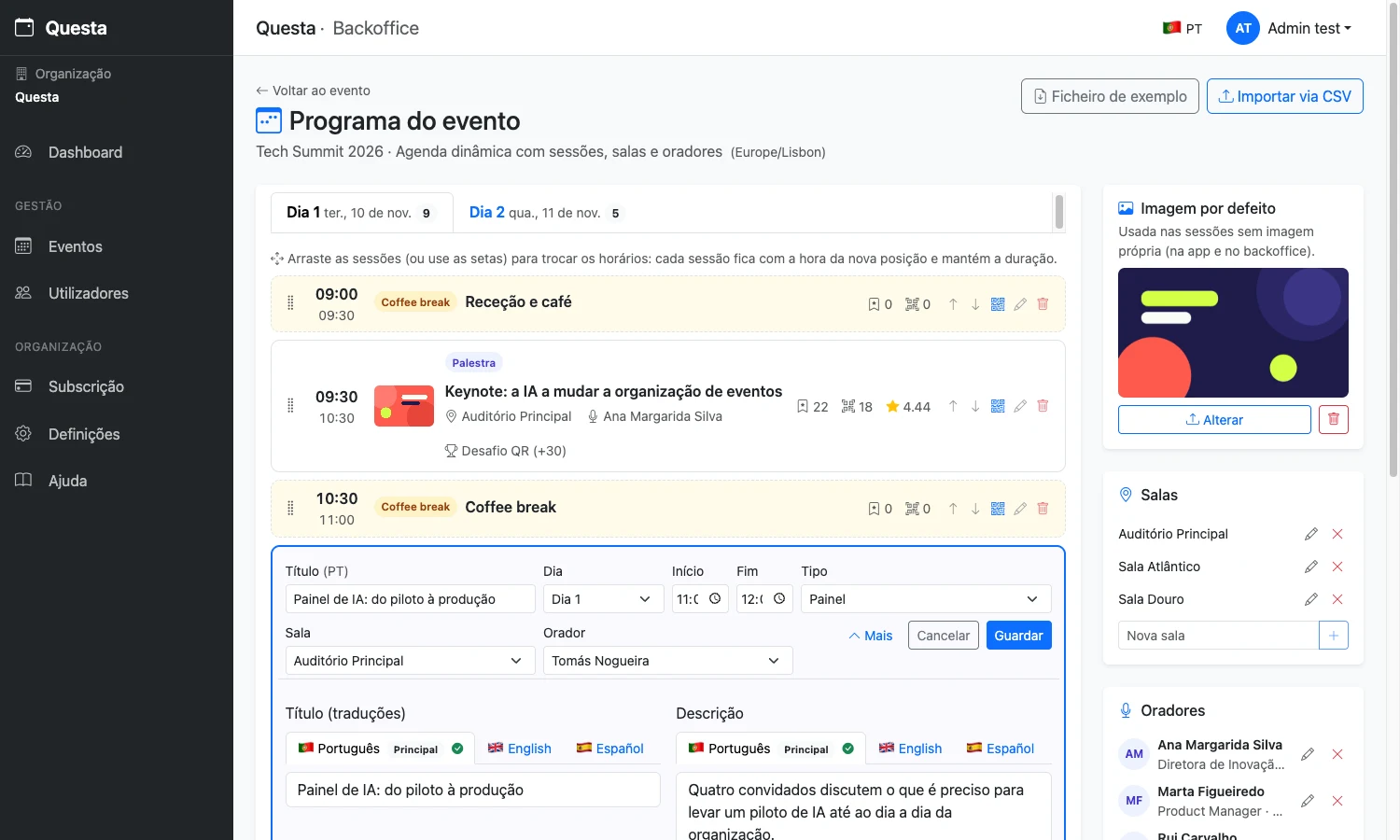
- On the right day, click “Add session”.
- Type the title and pick the day, start time and end time. Times use the event's time zone.
- Choose the type (talk, workshop, panel, break or meal), the room and the speaker. If the room or speaker doesn't exist yet, you can create it right there.
- Under “More” add the description, translations for the event's other languages, an image of its own and, optionally, a QR challenge with points.
- Save. The session appears in the day's list straight away.
Session types
| Type | When to use it | How it shows in the app |
|---|---|---|
| Talk | A speaker's presentation | Full card with speaker, room and time |
| Workshop | Hands-on sessions | Full card in the type's own colour |
| Panel | Discussions with several speakers | Full card |
| Break | Coffee breaks and intervals | Slim block, no rating |
| Meal | Lunches and dinners | Slim block, no rating |
Reorder with drag and drop
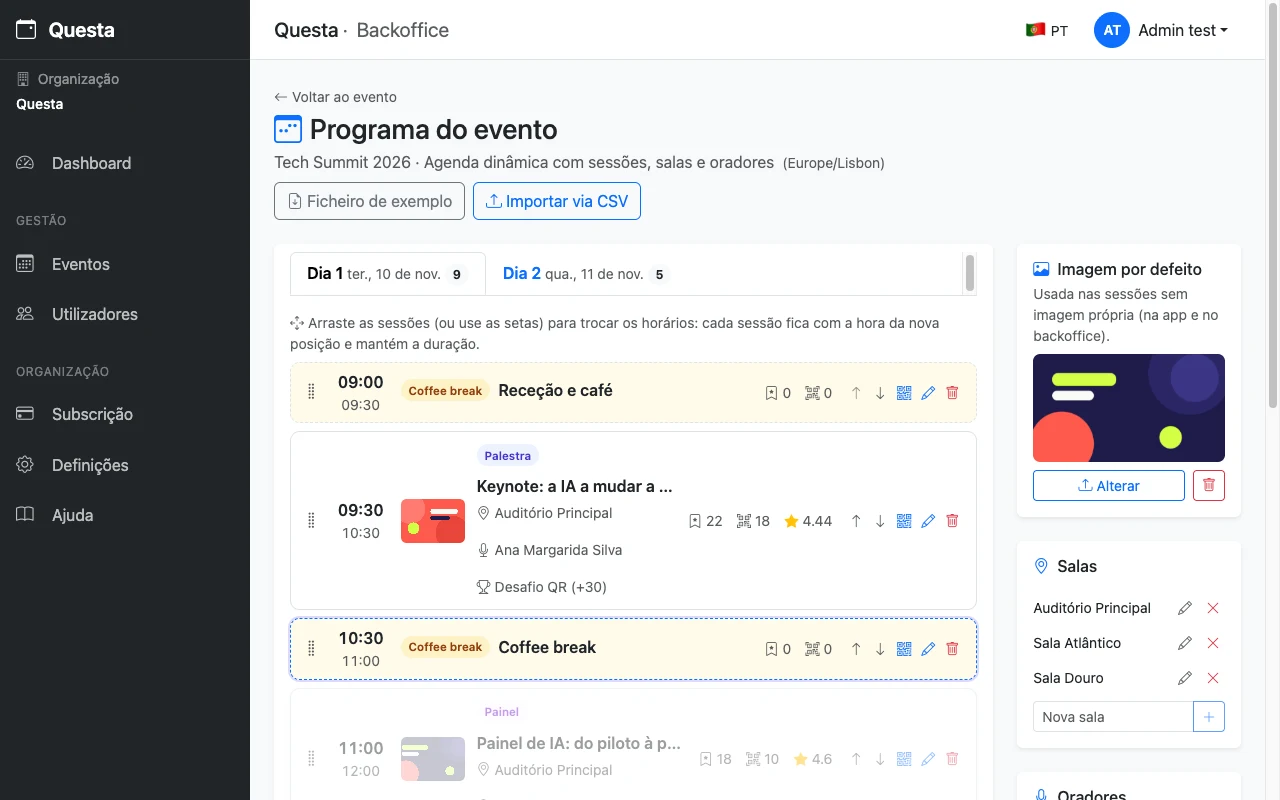
Drag a session (or use the arrows) to move it: it takes the time of its new position and keeps its duration. The platform warns you when two sessions overlap in the same room, so you can fix it before the audience arrives.
Rooms, speakers and default image
- Rooms: create and rename them in the side column, or while editing a session. Attendees can filter the programme by room.
- Speakers: name, role, company, bio and photo. They appear on the session card in the app.
- Default image: used for sessions without their own, so the programme looks good even before you have every photo.
Import the programme from a CSV or Excel file
If the programme already lives in a spreadsheet, importing saves hours. Click “Download template” (a sample CSV with your event's real dates), fill it in and import it.
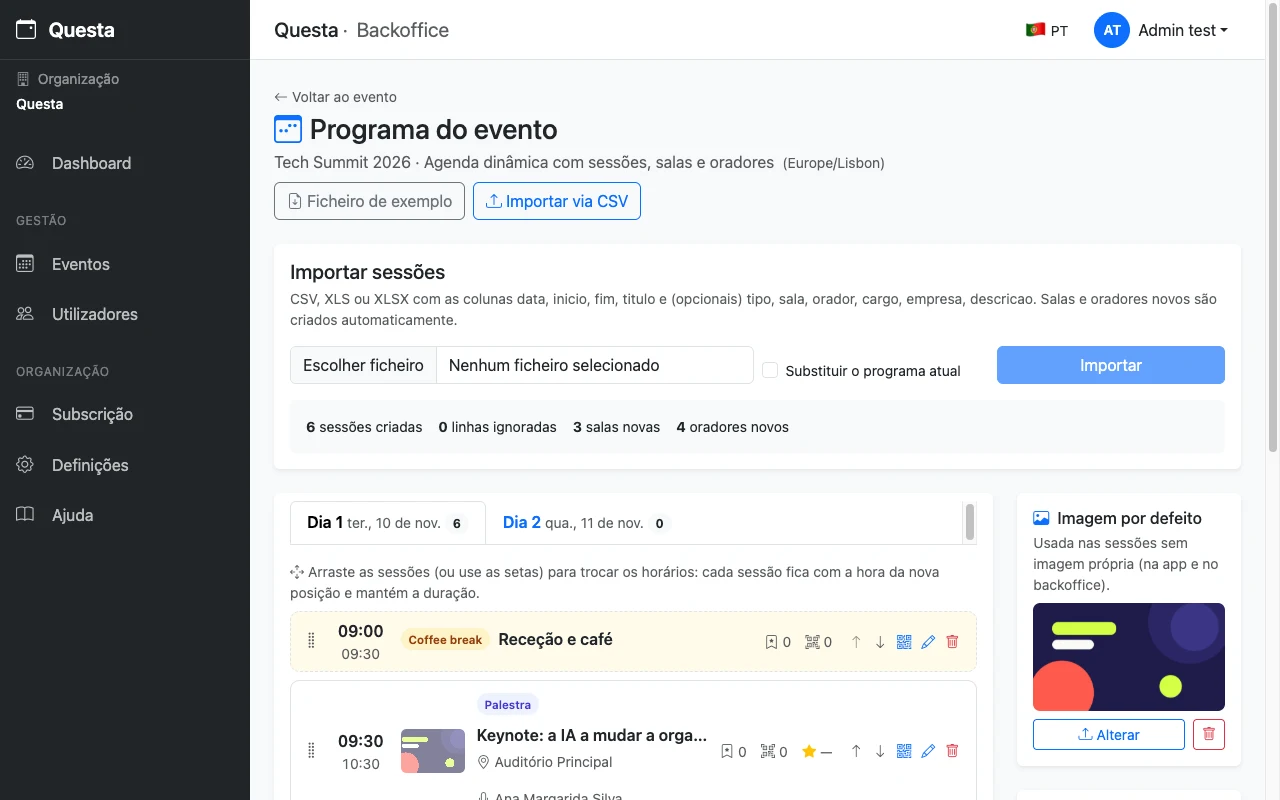
- Required columns: date, start, end and title.
- Optional columns: type, room, speaker, role, company and description. New rooms and speakers are created by name.
- Accepted formats: CSV, XLS and XLSX, up to 1000 rows; dates like 2026-11-10 or 10/11/2026 and times like 09:30 or 9h30.
- Invalid rows are skipped, with a per-row warning in the import summary.
Careful: the replace option deletes the current programme — including check-ins and ratings already recorded. If no row in the file is valid, the import is cancelled and your existing programme stays untouched.
Check-in QR and points per session
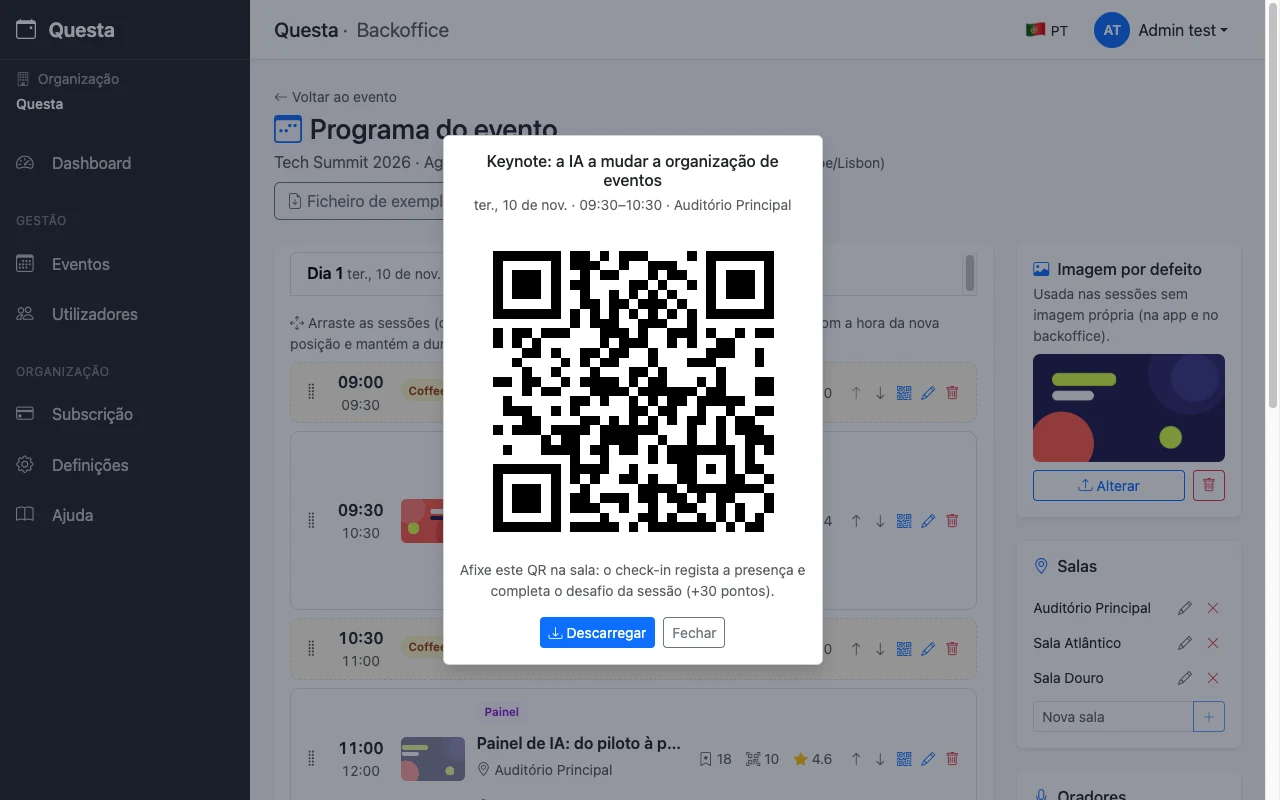
Every session has its own check-in QR. On the programme screen, click the session's QR icon, download the image and post it at the room door. Attendees scan it in the app and the check-in is recorded. If the session has a QR challenge, that check-in awards the challenge's points and counts towards the event ranking.
How attendees use the programme in the app (iOS and Android)
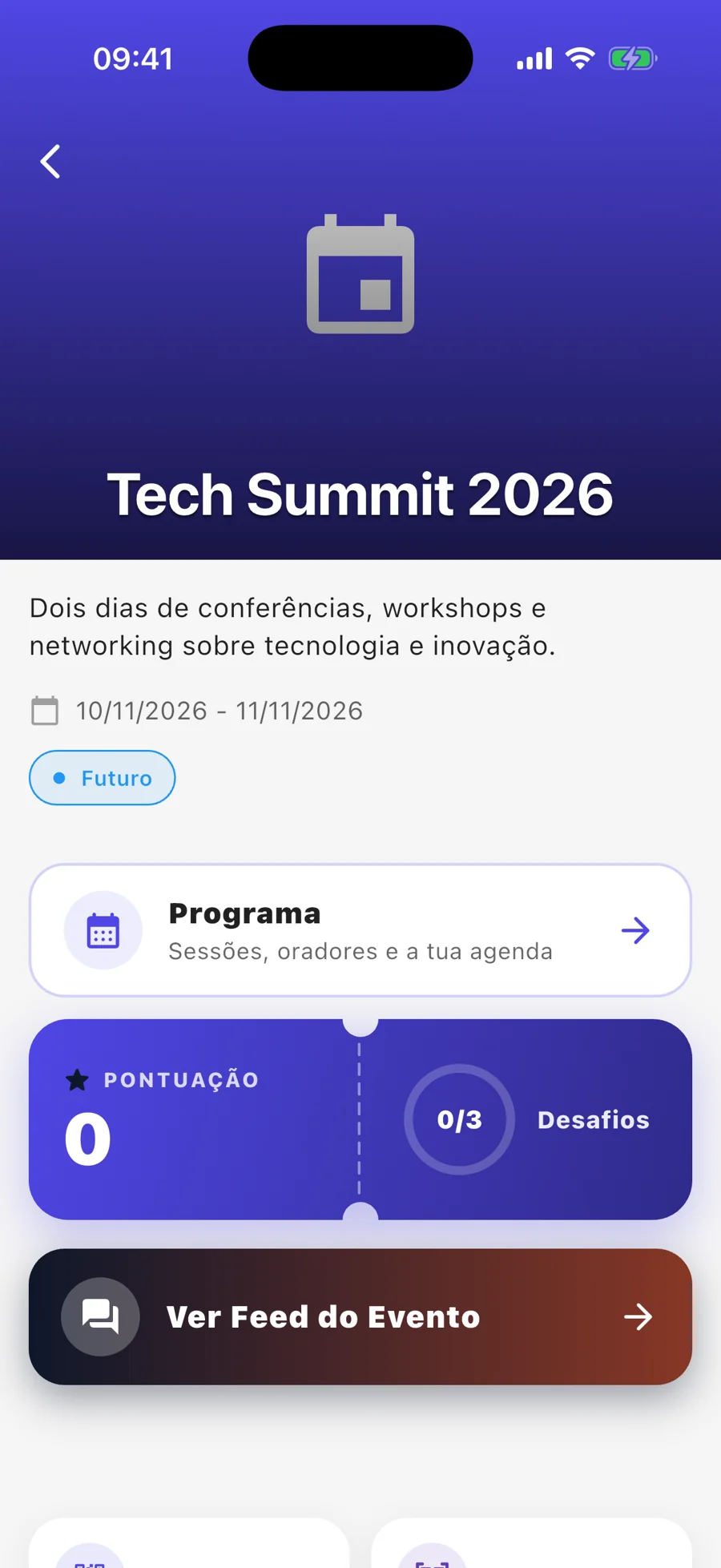
Attendees only need the Questa app and to be registered for the event. When the add-on is enabled, the event detail shows the “Programme” card.
See the programme by day
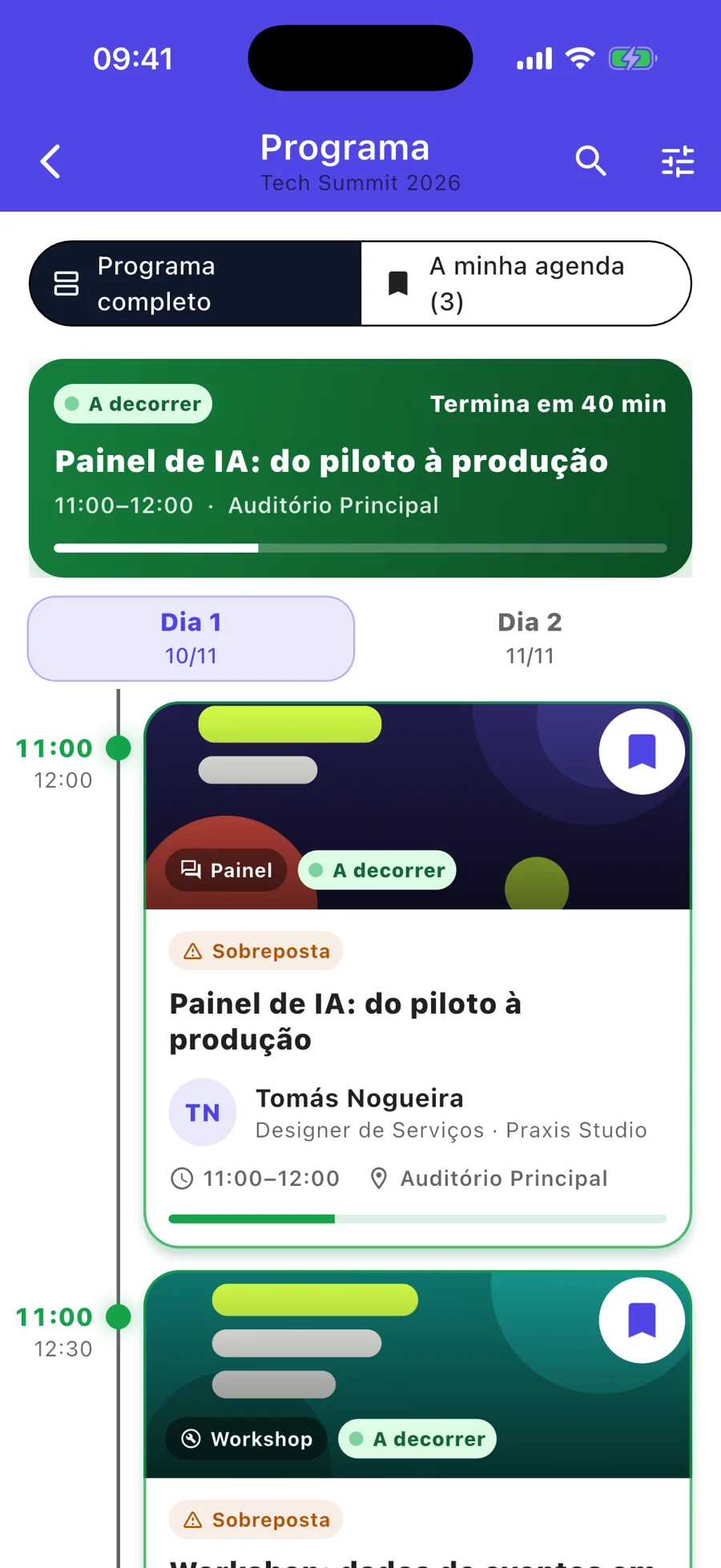
The programme screen has a tab per day, opening on today if the event is under way. The timeline shows the time on the left and, on the right, each session's card with type, title, speaker, room and available points. Finished sessions are dimmed and a “Now” line separates what has passed from what comes next.
Know what is on now and what comes next
At the top, a highlight shows the session on now, with a progress bar and time left, or the next one to start, with a countdown. If you save sessions, those in your agenda take priority.
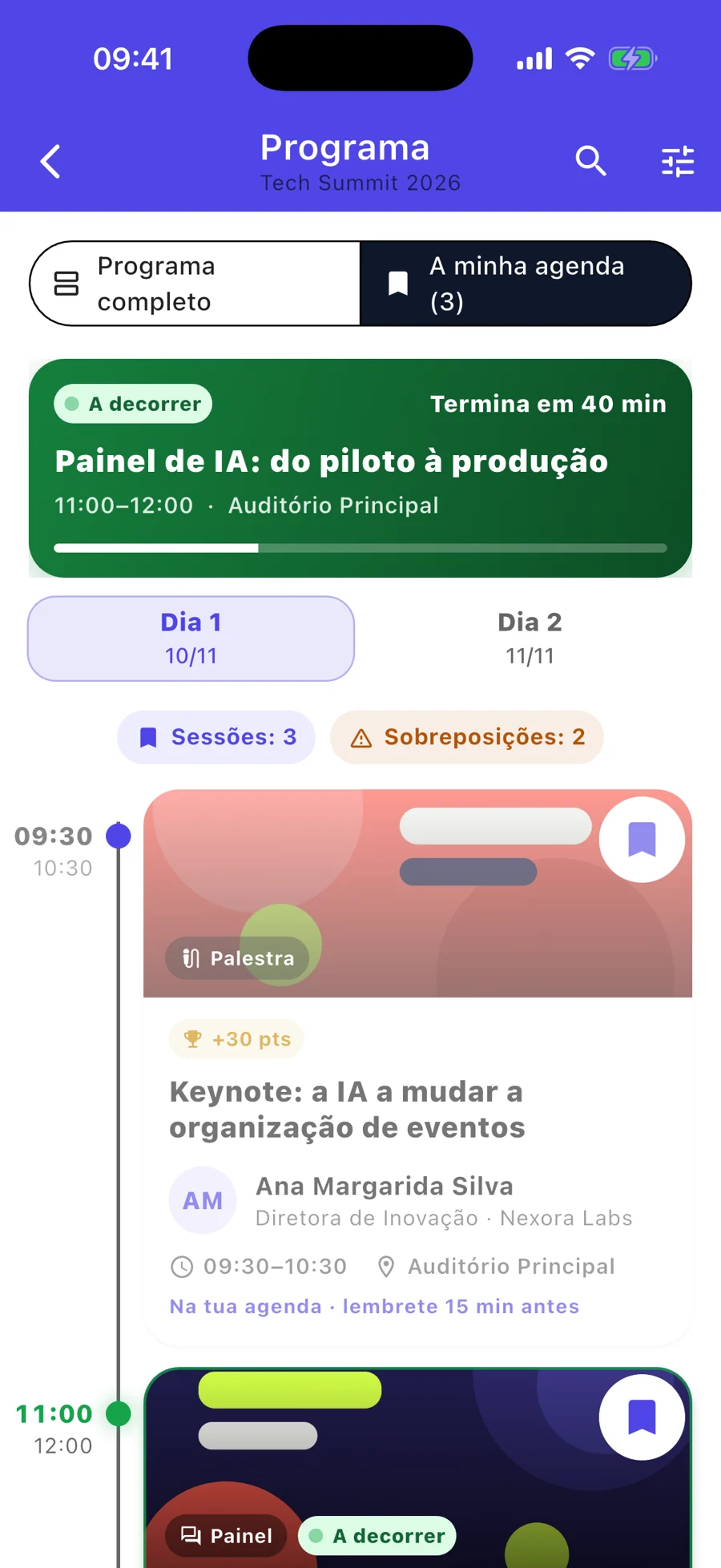
Save sessions to “My agenda”
- Tap a session's bookmark to save it.
- Switch to “My agenda” to see only your sessions, with a summary per day.
- Get a reminder 15 minutes before each saved session.
- If two saved sessions clash, the app shows an overlap warning — it doesn't stop you saving them, it just lets you know.
Search and filter
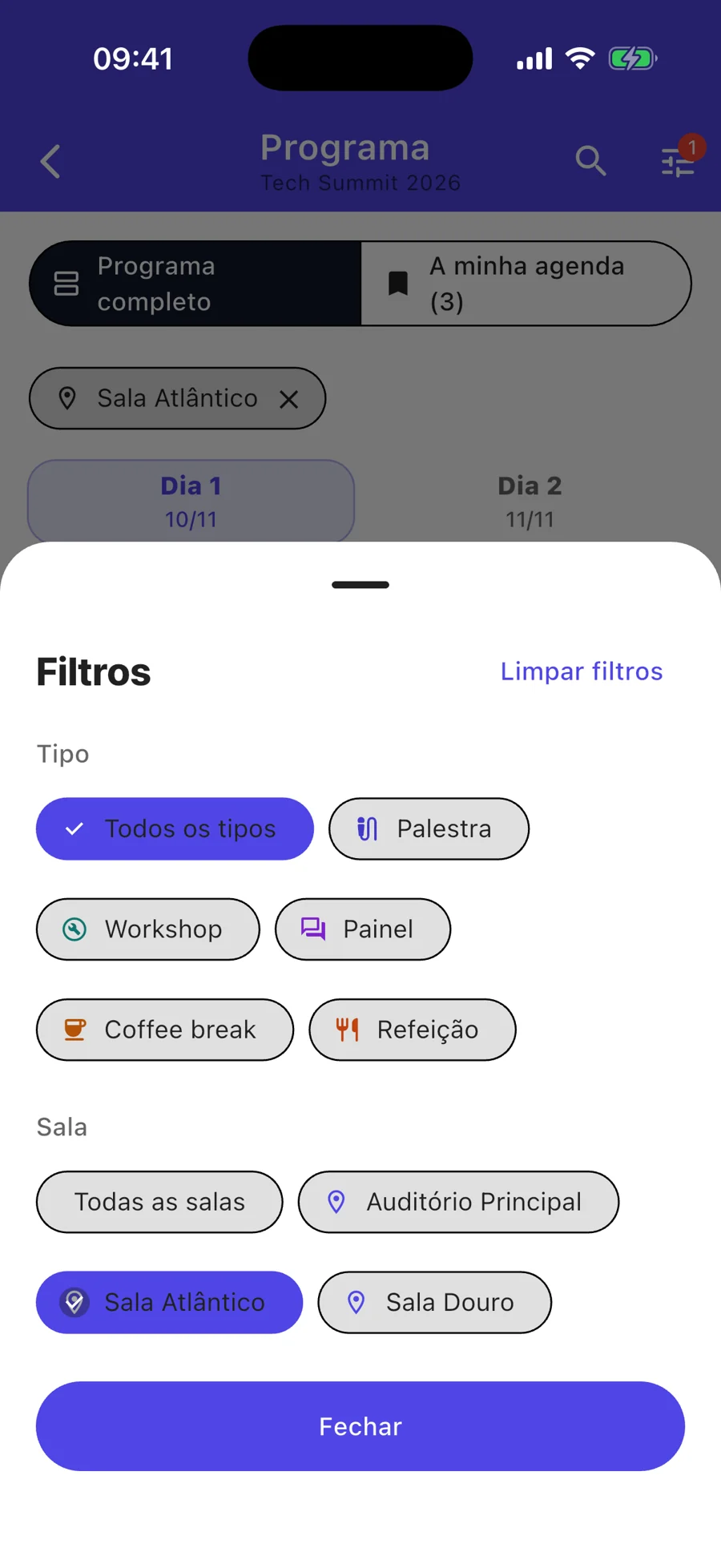
The magnifier searches by title, speaker, company or room, ignoring accents and capitals. The filter button narrows the programme by room or session type, and active filters show as chips you can remove with a tap.
See the details and add to your calendar
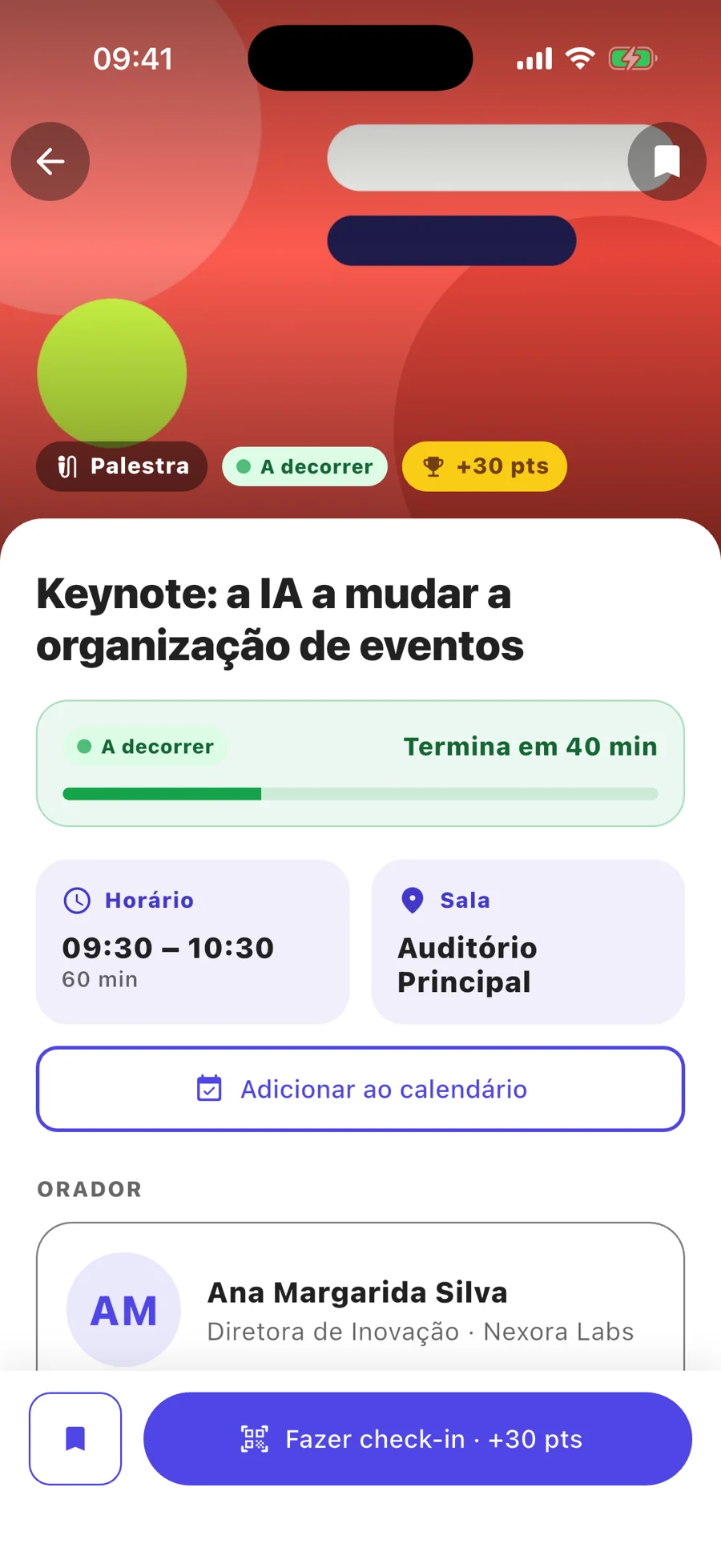
Tapping a session opens its detail: image, time, room, speaker with bio and description. The “Add to calendar” button opens your phone's event editor pre-filled with title, room and speaker, so the session also lands in your personal iPhone or Android calendar.
Check in and earn points
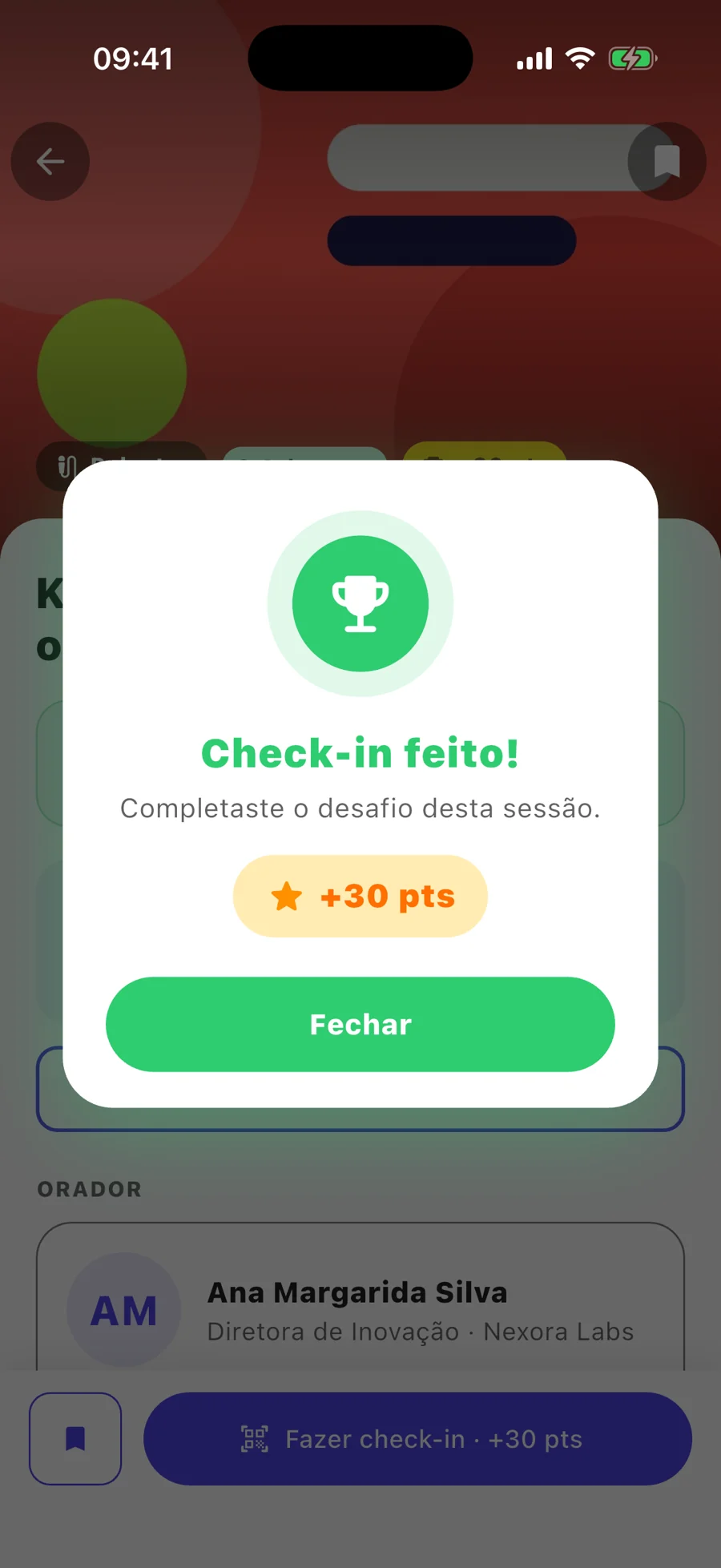
On the session detail, tap “Check in” and scan the QR posted in the room. Check-in is available from 30 minutes before to 30 minutes after the session. If the session has a challenge, points are awarded instantly; if not, the check-in is recorded for the organiser's statistics.
Rate the session
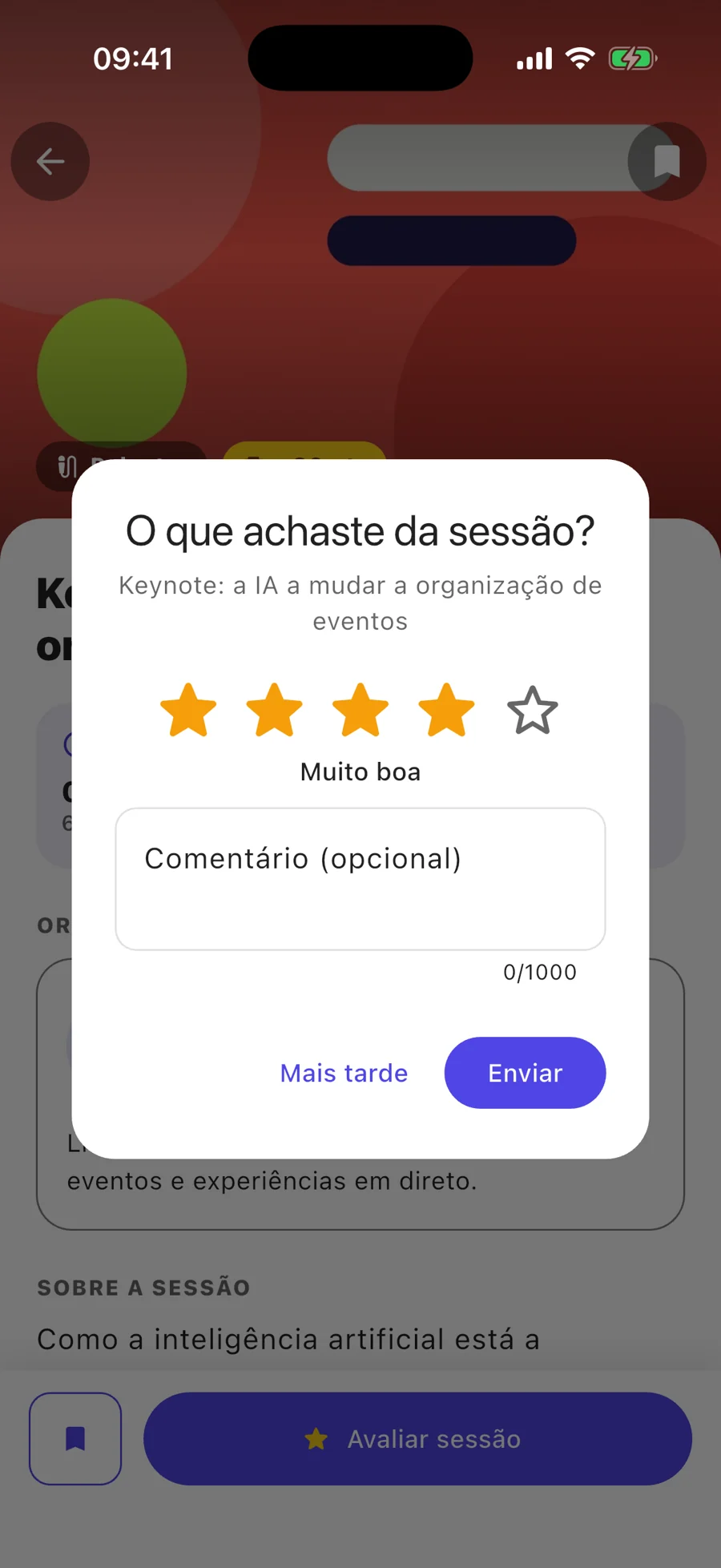
When a session ends, the app lets you rate it from 1 to 5 stars, with an optional comment. If you had the session in your agenda or checked in, the rating prompt appears on its own once. Breaks and meals can't be rated, and you can change your rating later.
Per-session statistics for the organiser
Each programme row shows how many attendees saved the session, how many checked in and the average rating. The numbers help you decide which formats to repeat and how to size rooms next time. For the big picture, see also the event analytics.
Best practices for a programme people actually use
- Publish the programme early and tell attendees it is already in the app.
- Keep session titles short: on a phone, the title is what gets read first.
- Fill in room and speaker on every session — they are what people search and filter by most.
- Use breaks and meals so the programme reflects the real day, not just the talks.
- Post the QR at the room door and add points to some sessions to encourage attendance; pair it with Live Pulse to engage the room during the session.
- Check room overlaps before the doors open.
Want to see the dynamic programme at your next event? Questa works for conferences and corporate events of any size. Create your account and build your first programme today.