Your staff’s phones
The Questa Check-in app scans QR codes with the camera. No scanners or computers needed at the door.
Staff validate every ticket with their own phone and the Questa Check-in app. Each QR code gets in only once, and the back office shows who came in and when.
Start with a free event for up to 50 attendees.
The Questa Check-in app scans QR codes with the camera. No scanners or computers needed at the door.
Validation happens on the server: a used, voided or unknown ticket is refused, even if it is a screenshot.
Staff get a role that only validates tickets: no back-office access and no attendee emails or contact details.
Entries per hour and per day, peak time, entries per staff member and no-shows after the event.
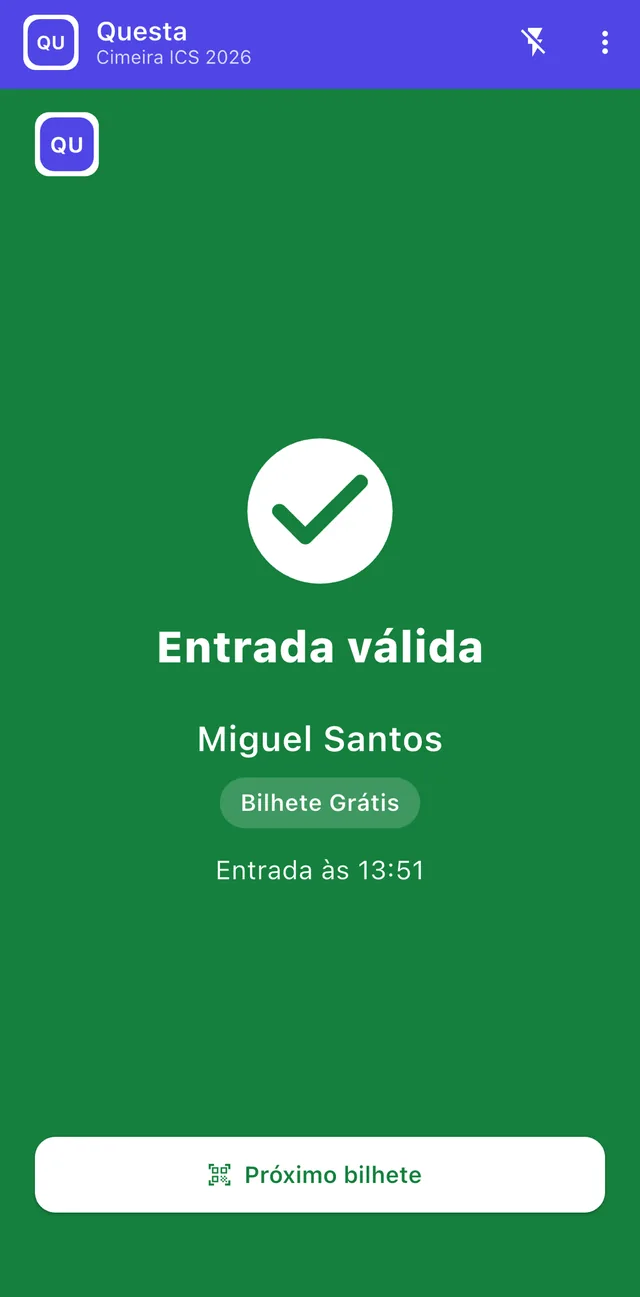
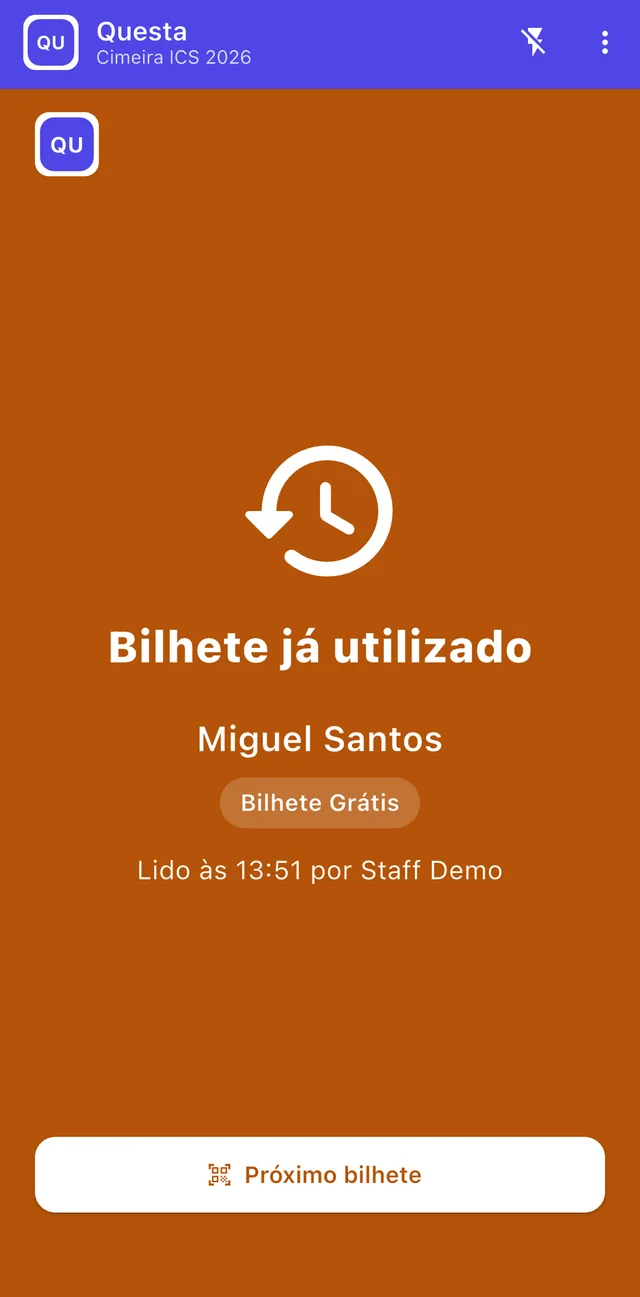
Green for a valid entry, with the holder’s name and ticket type. If the ticket was already used, the app shows when and who scanned it.
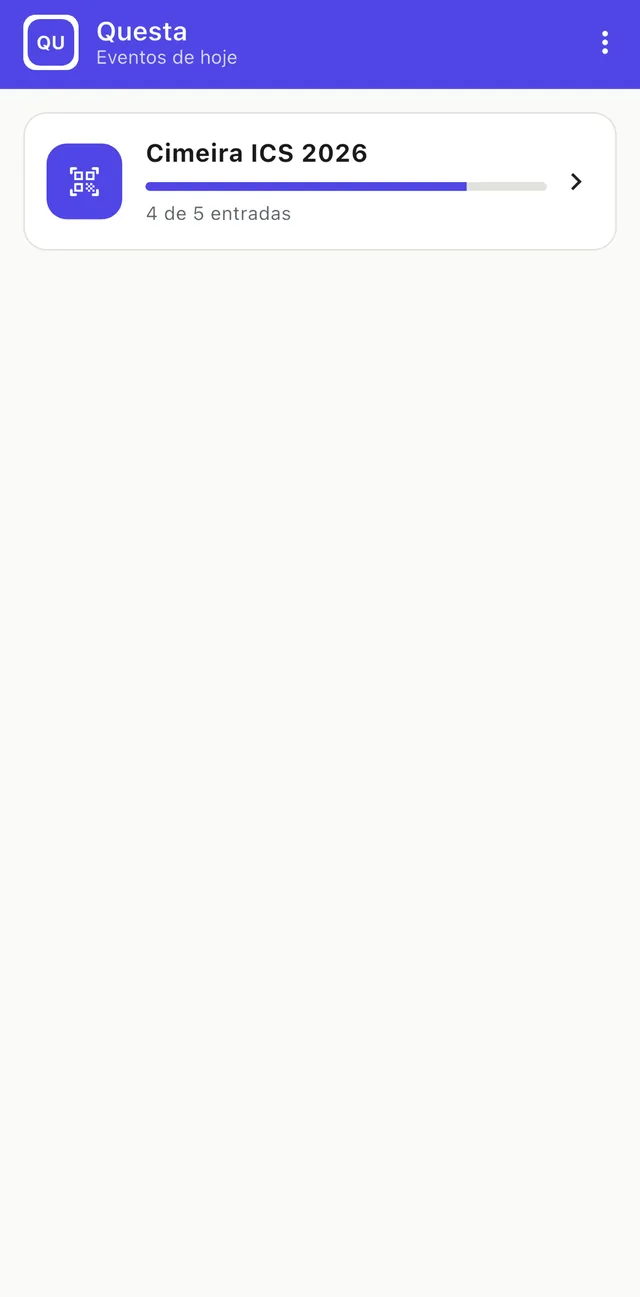
After signing in, the app lists the organisation’s events taking place that day, with how many entries have been made.
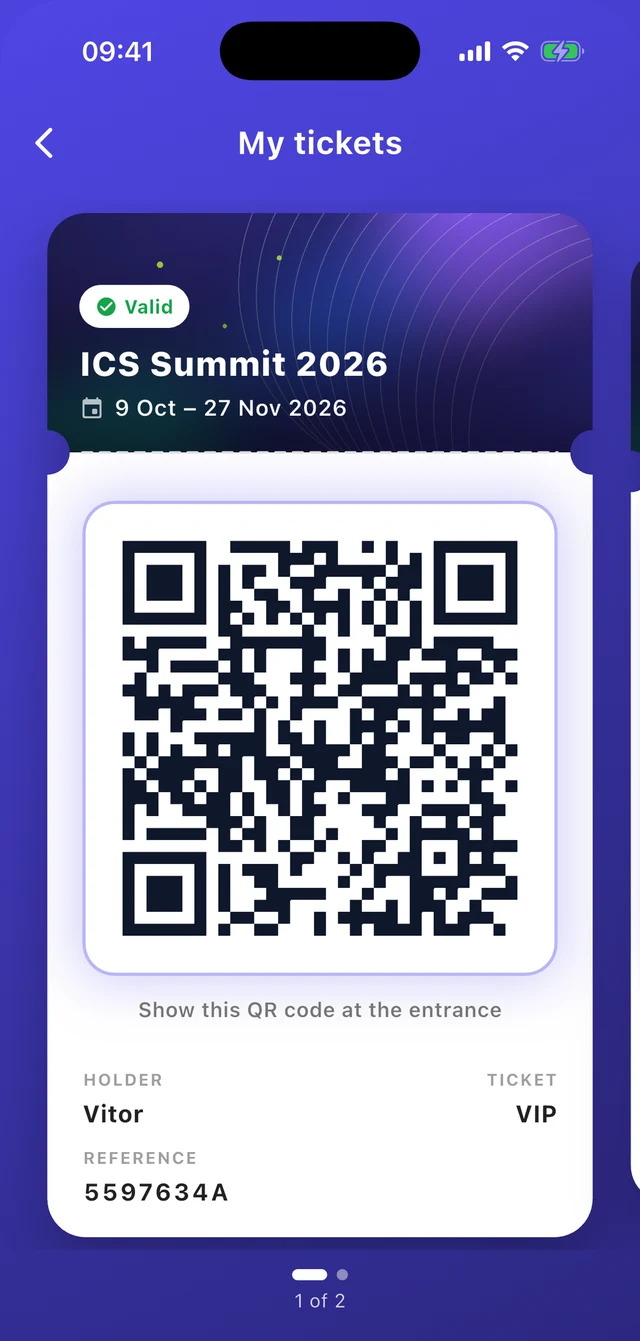
Each ticket arrives by email with a unique QR code. Questa app users also find it in “My tickets”, even offline.
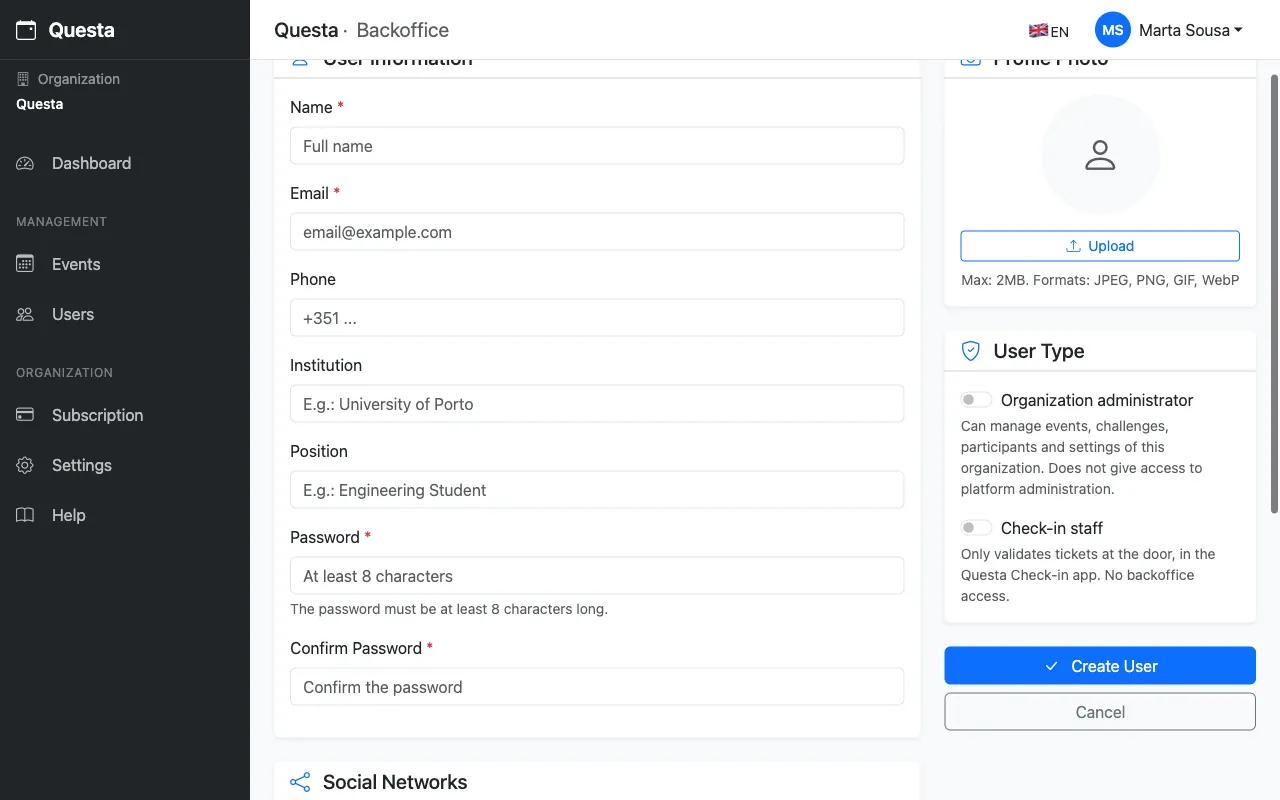
In Users, mark the person as “Check-in staff” and they sign in to the app with the same email. If a phone fails, there is manual check-in in the back office.
Check-in app screenshots in Portuguese.
Door check-in validates Questa tickets. If your event is free, create a free ticket: it does not need a Stripe account and each registrant gets their own QR code.
A smartphone with a camera and an internet connection, the Questa Check-in app, and an account with the check-in staff role in your organisation.
No. The first scan marks the ticket as used; later scans show “already used”, with the time and the name of whoever scanned it.
Only the holder’s name and the ticket type. Emails, phone numbers and tax IDs never appear in the check-in app.
We show you the platform with an example close to your event and help you set up the first one.