Now or scheduled
Fire the question on the spot or schedule it for the session time. It stays open from 15 seconds to 10 minutes.
With Live Pulse you launch a quick question during a session. Attendees answer in the app and the result appears on the projector as the votes come in.
Start with a free event for up to 50 attendees.
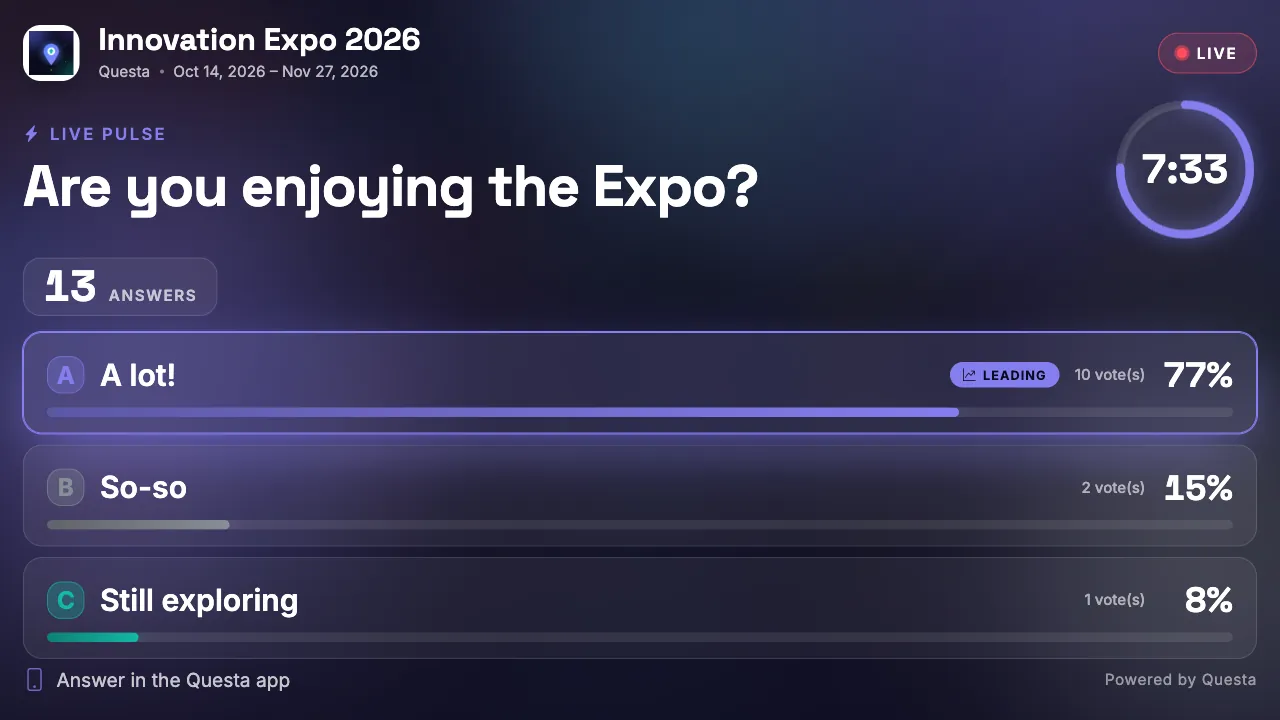
Fire the question on the spot or schedule it for the session time. It stays open from 15 seconds to 10 minutes.
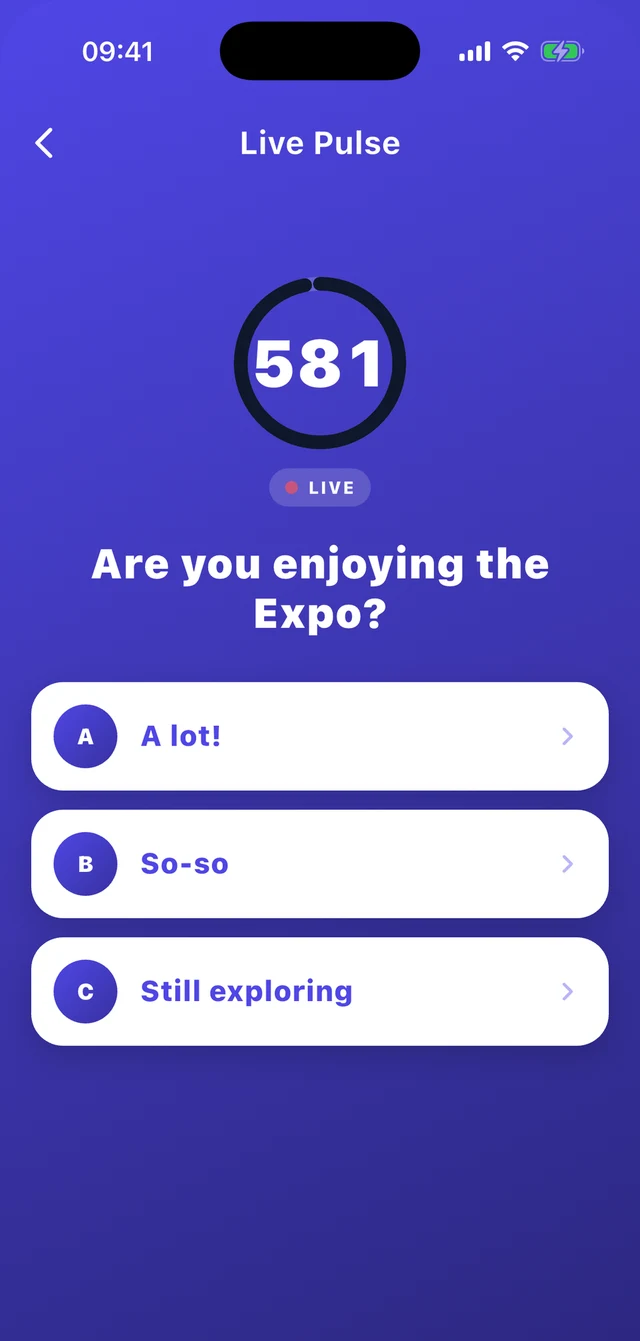
When the pulse opens, attendees get a notification and answer with a tap.
A public page, no login needed, shows the votes coming in, the countdown and the final results.
Multiple choice or a 1–10 scale, one vote per person, in the event languages.
The question appears in the app with the time remaining. Each attendee votes once.
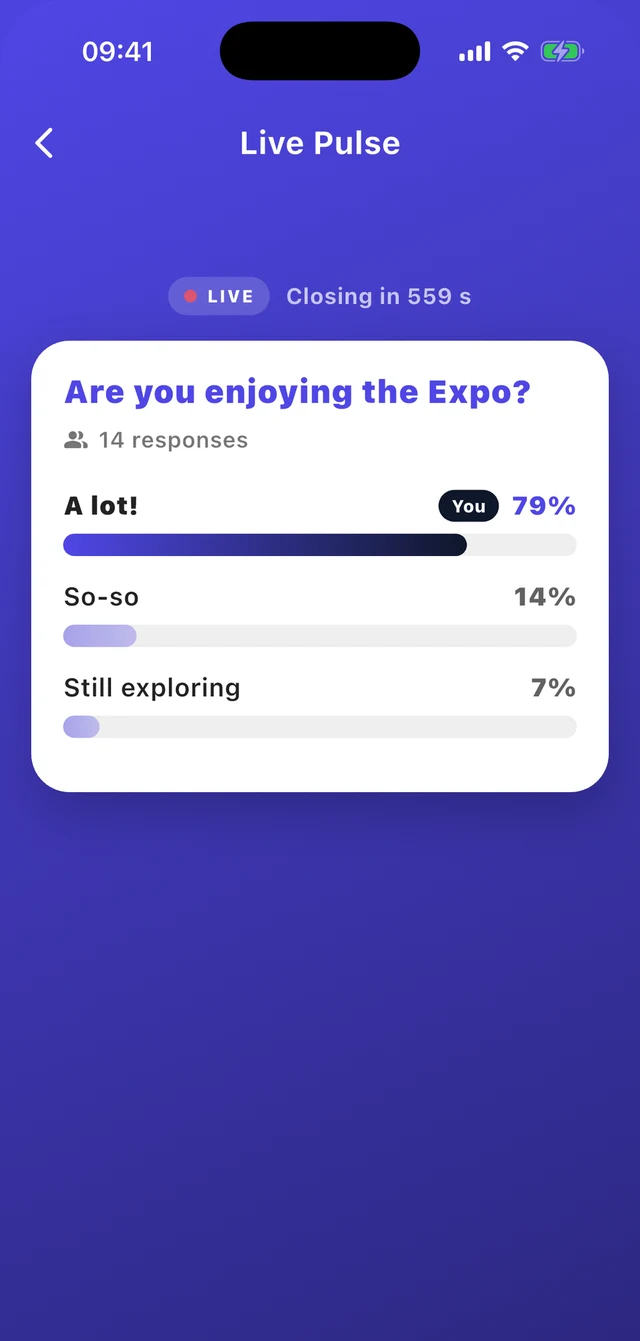
After voting, attendees see the percentage for each option. Previous pulses stay in the event history.
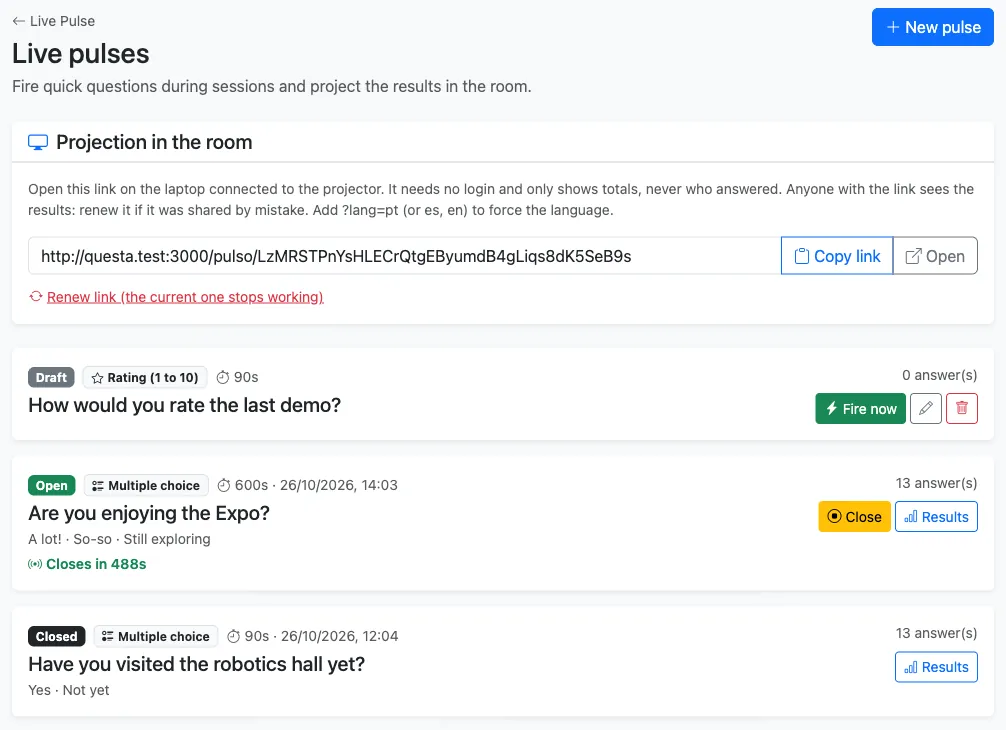
Create pulses in advance and fire them when the moment comes. Only one is open at a time, so the room stays focused.
They vote in the Questa app, with their event account. Only the projection screen is public, so you can open it on the room computer without signing in.
No. The projection screen, the app and the back office only show totals; names and individual answers never appear.
Multiple choice or a 1–10 scale. There are no free-text answers.
Yes. Pulses live inside a “Live pulse” challenge, which can also award points to attendees who answer a number of pulses you set.
We show you the platform with an example close to your event and help you set up the first one.